We have already blogged that how we can create a bootable DVD of Windows Vista and Windows 7 using WAIK(Windows Automated Installation Kit) as Microsoft does. WAIK is specifically targeted to Windows Vista and Windows 7 and nobody likes to download such a big Toolkit to create just a bootable DVD.
Today we have come with a simple and straight how-to guide, which explains how we can create bootable DVD of Windows Vista/7 using Nero burning software.
(We are using Nero because it is one of the popular CD/DVD burning software and can be available easily. You can grab the Trial version of Nero official website.)
Requires:
- Windows Vista/Windows 7 Installation Source Files
- Blank DVD and Nero.
How To:
- First of all, install Nero and prepare your Installation source files by copying them to particular folder or directory. Lets say- all files are copied to C:\DVD folder.
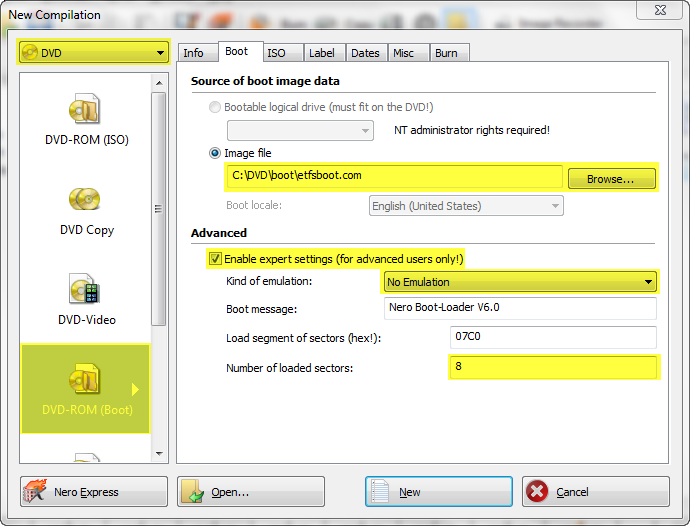
- Start Nero Burning ROM (Go to Start >> All Programs >> Nero >> Nero 9 and click on Nero Burning ROM). On New Compilation dialog box, Select DVD as compilation and then DVD-ROM (Boot).
- On Boot tab and locate boot image file using Browse button. (Windows Vista and Windows 7 installation source contain boot image file called etfsboot.com in Boot directory) See the above image.
- Windows Vista x64 Installation files doesn’t contain etfsboot.com, so you can use the same file from x86 version.
- Now under Advanced, check Enable expert settings (for advanced users only), set emulation type as No Emulation & number of loaded sectors as 8 and leave rest of settings intact. (1 sector = 512Bytes, etfsboot.com requires 4.0KB to boot DVD)
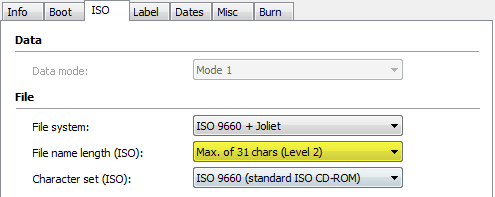
- On ISO tab, select File name length as Max. of 31 chars (Level 2). Now move Label tab and set the label of disc, say “Windows 7 DVD”.
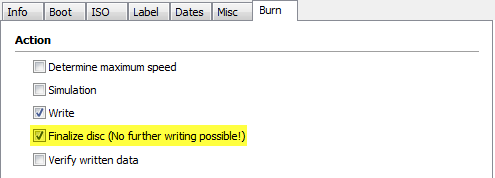
- On Burn tab, don’t forget to check Finalize the disc (No further writing possible!). Now almost everything is done, so click on New to add Windows 7 Installation Source files.
- Just select all files and folders from DVD and drag them under to Windows 7 DVD. That’s it, now click on Burn button on toolbar or choose Recorder menu >> Burn Compilation. Insert the blank DVD into drive and set appropriate burning speed. It is recommended to burn disc lower speed (2x or 2.4x) for better results.
Applies To:
- Windows Vista (x86 & x64)
- Windows 7 (x86 and x64)
- Windows Server 2008 (x86 and x64)
- Windows Server 2008 R2


Leave a Reply