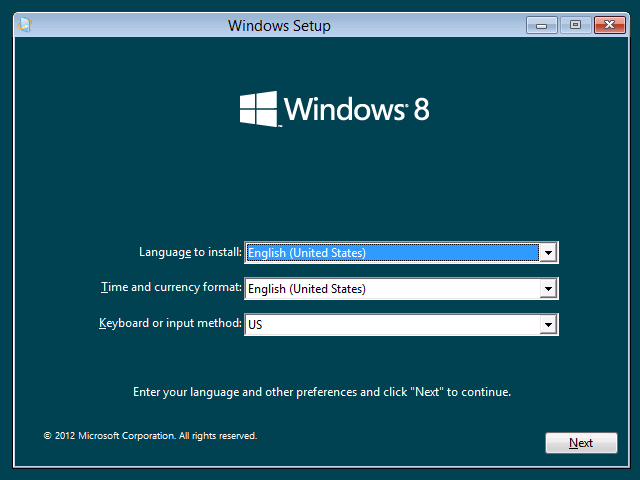
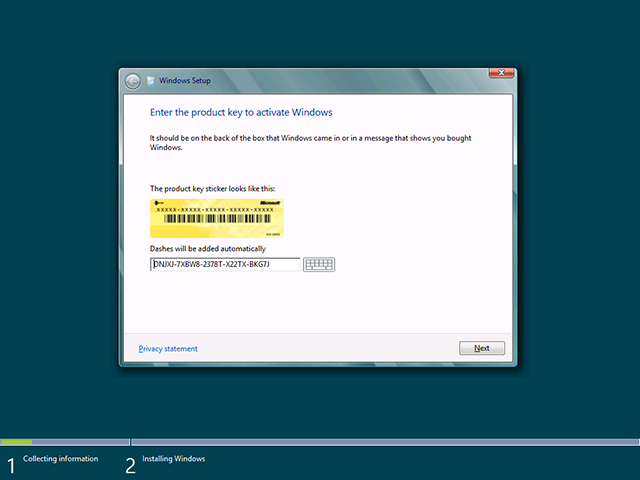
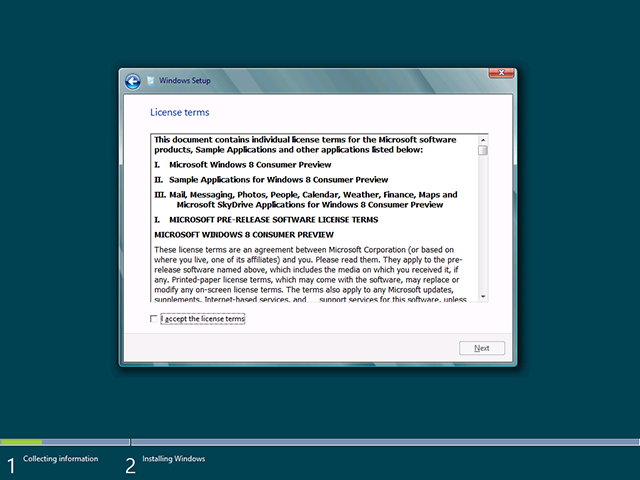
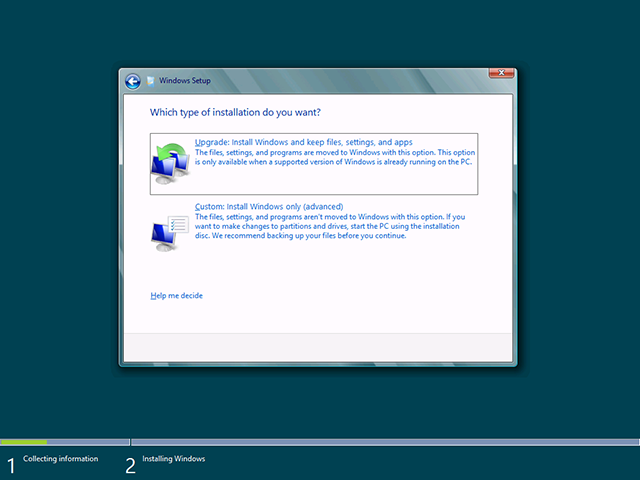
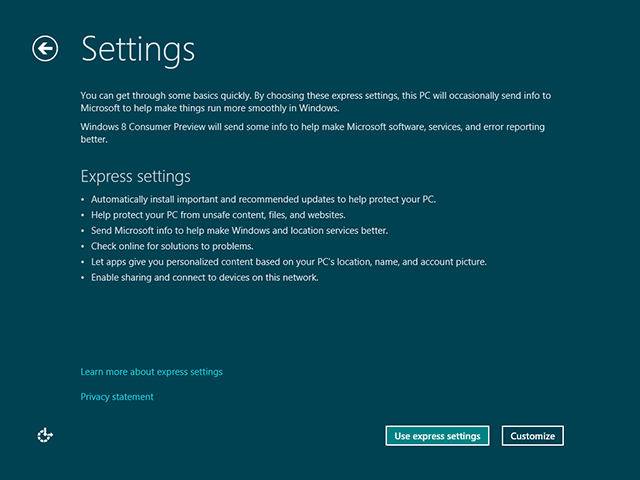
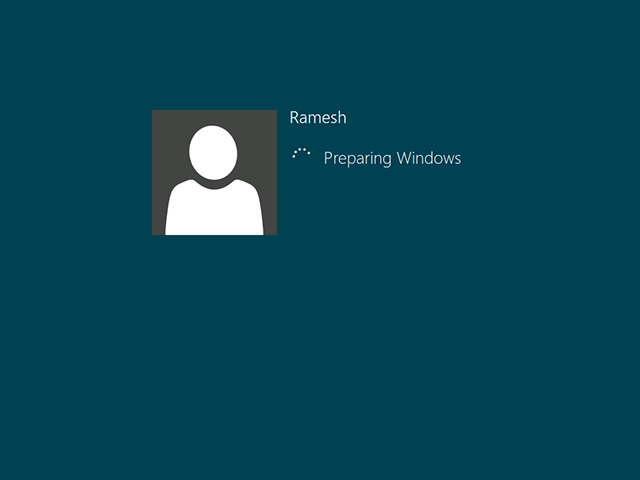
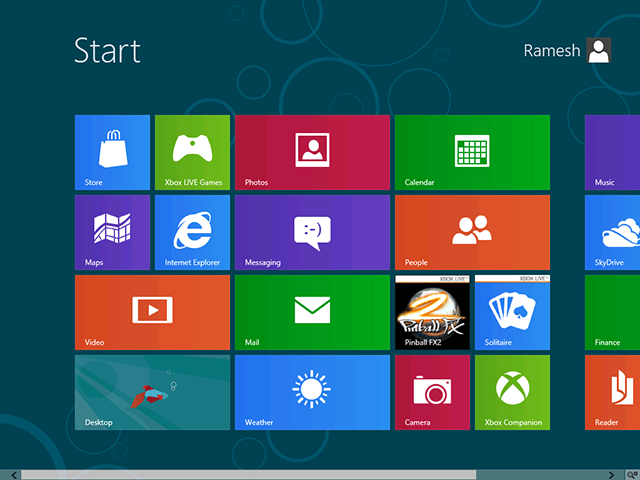
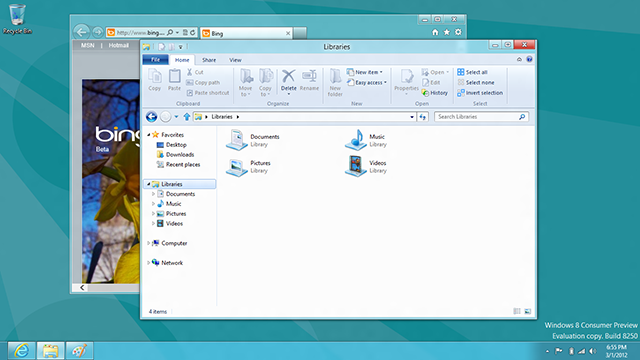
It’s been 24 hours since the Windows 8 Consumer Preview available for everyone! And up to now I made several installation of Windows 8 CP in different environments. During the installations I took few screenshots and in this blog post, I am sharing the Windows 8 Consumer Preview installation gallery.
The installation process is pretty easy and similar to its predecessor Windows Vista and Windows 7. So if you already have experienced the Windows 7 installation, I bet – you won’t get jammed anywhere.
Just keep in mind, you PC must meet the minimum system requirements of the Windows 8 CP.
Check out the Windows 8 Consumer Preview installation screenshots –
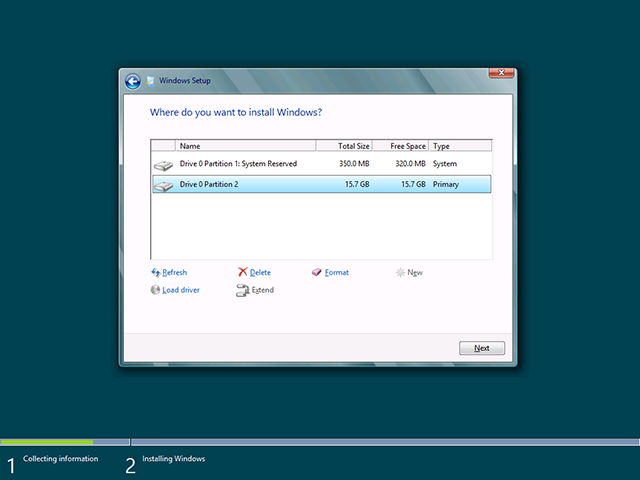
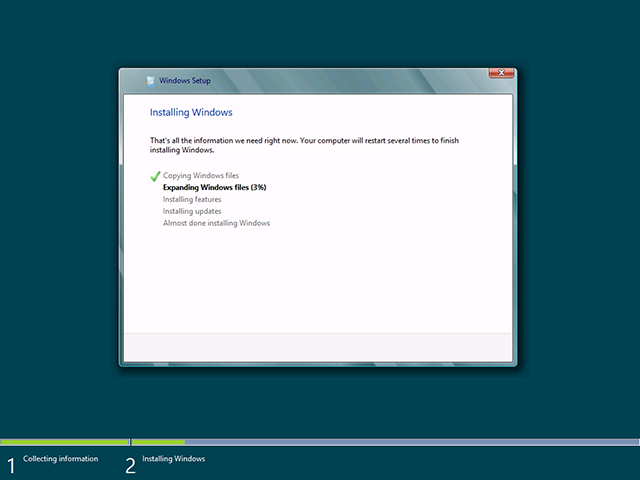

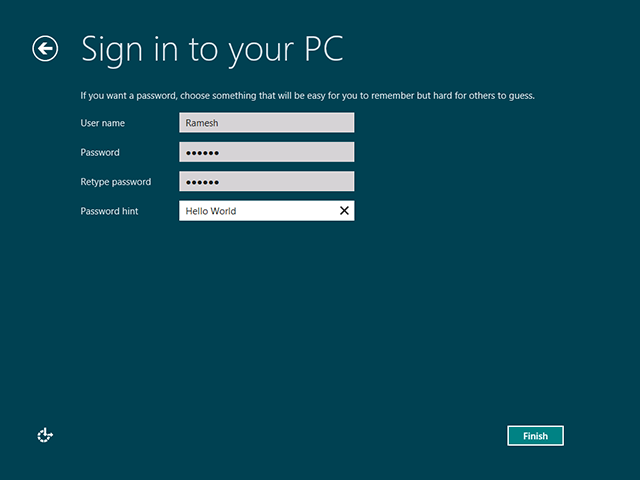
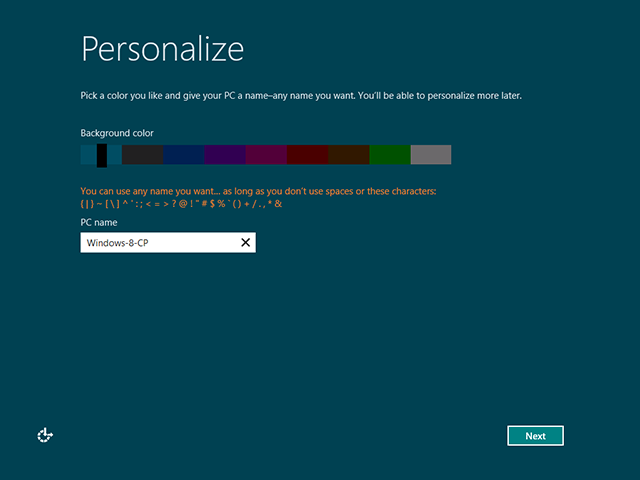
If you haven’t get your hands on Windows 8 yet, download it now! In addition to screen shots neowin.net shares total 95 watermark free images (1920 x 1080) and you can download this zip file containing all of them.
Leave a Reply