Remove “Shared Folder Synchronization” from Right-click Context Menu

January 14th, 2010

Microsoft Office 2010 Professional and Professional Plus installs a handy option (Shared Folder Synchronization) to Desktop and Folder’s Context Menu for its Microsoft SharePoint Workspace formally known as “Groove”

If you don’t use Microsoft SharePoint Workspace and like to remove the option without uninstalling Office components.
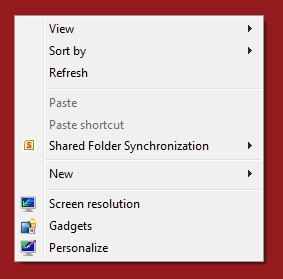
Shared Folder Synchronization

You can remove it by simply editing a registry sub key.

How To:

1. Run Registry Editor and go to- HKEY_CLASSES_ROOT\CLSID\{6C467336-8281-4E60-8204-430CED96822D}

2. Now rename or delete the sub key {6C467336-8281-4E60-8204-430CED96822D} I recommend to rename the sub key instead of deletion. For e.g. prefix backup. to sub key or backup.{6C467336-8281-4E60-8204-430CED96822D} it helps to revert the changes easily.

3. Close the Registry Editor and Refresh the Windows Explorer.

Applies To:
  • Microsoft Office 2010 Professional Beta
  • Microsoft Office 2010 Professional Plus Beta
  • Microsoft Office 2007 Enterprise
  • Microsoft Office 2007 Ultimate

Related Articles

8 Responses to “Remove “Shared Folder Synchronization” from Right-click Context Menu”

  1. Sean C says:

    Perfect instructions, thanks!

  2. Matthew W says:

    Thanks a lot. I was getting so annoyed w/ that. I wanted it gone, and I hate how programs..etc will put right click context on your right click. So thanks for this information on this fix. ;D

  3. Victor says:

    Thanks… 100% working !

  4. Ivan says:

    Thanks a lot!!! It’s great!!!!

  5. VIVEK R says:

    Thanks a lot man. It Works!

  6. Jason says:

    No need to muck with the registry. Just unregister the DLL. The DLL in question is called grooveex.dll. It is used for Microsoft SharePoint Workspace Extensions.

    run this for 64-bit OS:
    regsvr32 /u “C:\Program Files (x86)\Microsoft Office\Office14\GROOVEEX.DLL”
    run this for 32-bit OS:
    regsvr32 /u “C:\Program Files\Microsoft Office\Office14\GROOVEEX.DLL”

    If you want to add it back in then:
    64-bit OS:
    regsvr32 “C:\Program Files (x86)\Microsoft Office\Office14\GROOVEEX.DLL”
    32-bit OS:
    regsvr32 “C:\Program Files\Microsoft Office\Office14\GROOVEEX.DLL”

    Much cleaner.

  7. Ahmed says:

    Thanks
    That`s what I`m was lookin` for

  8. wormy says:

    WOW! Thanx for your tip

Leave a Reply