You may have read somewhere before that Windows 7 introduced a feature wherein you can lock your PC without the a screensaver. So today we are sharing few simple steps to achieve this.
Literally IT administrators to want their machines to auto-lock after a certain amount of time and in earlier version of Windows enabling this functionality required a screensaver to be set. But in Windows 7, Microsoft has made a change to allow this functionality even when no screensaver is specified.
How To:
1. Right click on Desktop and choose Personalize. Now click on “Screen Saver” link to open Screen Saver settings window.
2. In Screen saver section, Choose (None) from installed screen savers and check the option “On resume, display logon screen”. Set the wait time and click on Apply button to commit changes.
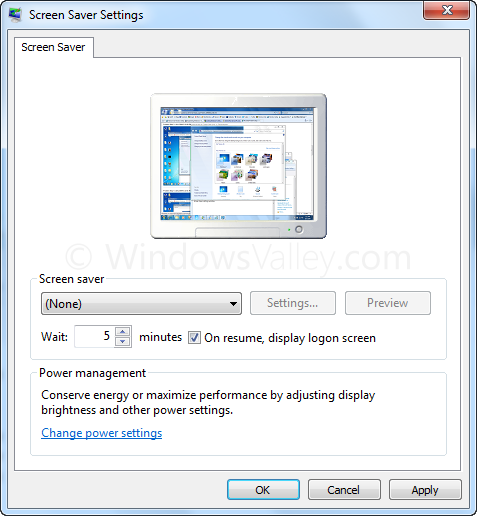
3. Now you can let your PC idle and after a certain amount of time(Wait timeout), your PC will be auto-locked.
Applies To:
- Windows 7 Home Basic
- Windows 7 Home Premium
- Windows 7 Professional
- Windows 7 Ultimate
- Windows 7 Enterprise
— Updated 11/23/2009


Leave a Reply