How to change Welcome/Logon screen background without the use of third party software

July 1st, 2009

Surprised ! but its true. Now you can change Welcome/logon screen’s background in Windows 7 and its supported officially. Microsoft has made a change to customize or ability to load JPG images as background of the welcome/logon screen without using any third party software.
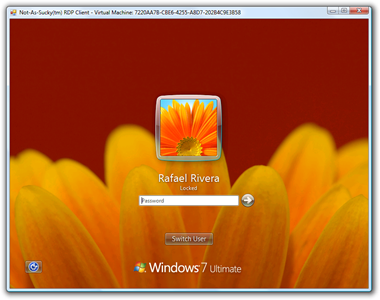
Windows 7 Welcome Screen

Although the functionality was designed for ease of OEMs to set their own backgrounds to Welcome/logon screen. It can be done by changing few registry settings and you can set your own background.

How To:

1. Run Registry Editor and navigate to: HKEY_LOCAL_MACHINE\Software\Microsoft\Windows\CurrentVersion\Authentication\LogonUI\Background

2. Now create a DWORD value called OEMBackground and set it to 1

3. Now copy your image file (JPG file) into %windir%\system32\oobe\info\backgrounds and rename it to backgroundDefault.jpg (By default info & backgrounds folders don’t exist, so create them.)

NOTE: Image must be less than 256kb in size.

Applies To:
  • Windows 7 Ultimate
  • Windows 7 Enterprise
  • Windows 7 Professional
  • Windows 7 Home Premium
  • Windows 7 Home Basic

More info: IntoWindows.com

Related Articles

14 Responses to “How to change Welcome/Logon screen background without the use of third party software”

  1. rupam says:

    can this be applied to vista sp2????????

  2. John Lawrence says:

    To: rupam,

    StarDock created a program called: LogonStudio. This lets you to change your log on screen with an image from their website or by your own. Works perfectly with Vista (any version) SP1, SP2, ‘even SP3′…just kidding :D

  3. Andrew says:

    Worked fine on 7 ultamite, UUMmm, but i just renamed the defaulf reg ( OEMBackground) value to 1 and it created the folders for me. Moved my back jpg and it showed up very next boot. SMMOOOTH

  4. dave says:

    I just tried this and it isn’t working. Is the DWORD suppose to be set as HEX or DEC?? Though I have tried both. Is also stated that the folders info and backgrounds do not exist. I had the ‘info’ folder but had to create the ‘background’ folder. You are also using a folder called ‘background’ and one called ‘backgrounds’, is this correct??

    • Author says:

      It doesn’t matter you set 1 in HEX or DEC. You must create a folder called backgrounds under info. You are talking about background is the subkey, see the step 1. The most important thing, the size the JPG file. It must be under 256KB.

  5. dave says:

    I have verified all again and everything is like instructions. Pic size is 226kb. I did notice that in the oobe directory is where the current background image is currently at.

  6. Joey says:

    Ok I am trying to do this, but can’t seem to do it. There is no HKLM in the regedit, any ideas?

    Windows 7 Ultimate 64-bit with dualboot Windows Vista 32-bit

    • Author says:

      HKLM stands for HKEY_LOCAL_MACHINE. The trick is valid for Windows 7 only.

    • Joey says:

      ~Author; I found where you were talking about and got everything set up, however it is still not working. I moved the image to the folder specified and renamed it backgroundDefault.jpg and it is only 250k but still does not work. D: *shocked at my own failure*

  7. Shailesh says:

    Hey, i tried evrything that u suggested to change the boot screen background… but even after doing all the steps, the background is not changing. so what should i do now???

  8. dear sir, i am chenging windows 7 oem logo & editing my office logo it”s realy work but this is not created..

  9. Donna says:

    Thank you Thank you Thank you.xx <3 xx

  10. Chreh says:

    How does this not count as using third party software? the company that makes the product we’re being told to use is not windows, i’m not doubting it’s effectiveness, i’m just saying that it IS in fact a third party….

Leave a Reply