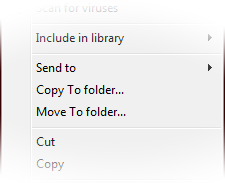
An older but useful context menu options of Windows Explorer, “Copy To Folder” and “Move To Folder” can be added by this easy Registry Hack.
If you are missing some sort of File and Folders Tasks in Windows 7. It may be find interest to you. Its a hidden functionality of Windows Explorer enables to Copy or Move Files and Folders to a particular folder, by right click on Files and Folders.
How To:
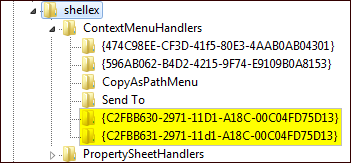
1. Run Registry Editor and navigate to: HKEY_CLASSES_ROOT\AllFilesystemObjects\shellex\ContextMenuHandlers
2. Now right click and choose New >> Key option to create a sub key called {C2FBB630-2971-11D1-A18C-00C04FD75D13} to add “Copy To Folder” and create another one called {C2FBB631-2971-11d1-A18C-00C04FD75D13} to add “Move To Folder”
3. Now when you right click on any file or folder, you will get the following options:
That’s it !
Applies To:
- Windows XP
- Windows Vista
- Windows 7


Leave a Reply