You may have heard about “time machine”, is a concept to travel into time frames. But it is no longer concept for your day-to-day Windows computing. Altaro’s Oops! Backup makes it possible and lets you never say “Oops!”.
You ever deleted, overwrote important files and folders, messed up with some precious photos accidently and you desperately wanted to revert back to original state, but you couldn’t help it and there was a single word “Oops!”.
Well, there is now an answer to all such Oops! moments! An easy and effective solution Oops Backup is ready now. It lets you to get lost, deleted files, but also allows to view past changes made to those files and to undo those changes including Outlook PST folder (Mails Backup). Oops Backup runs on Windows XP, Windows Vista and Windows 7. We gave a shot on Windows 7 Ultimate 64-bit and it works without any hassling.
Features: User Experience
UX always comes first and Oops Backup offers ease of access of all controls to user and configuring backup task within 3 easy steps.
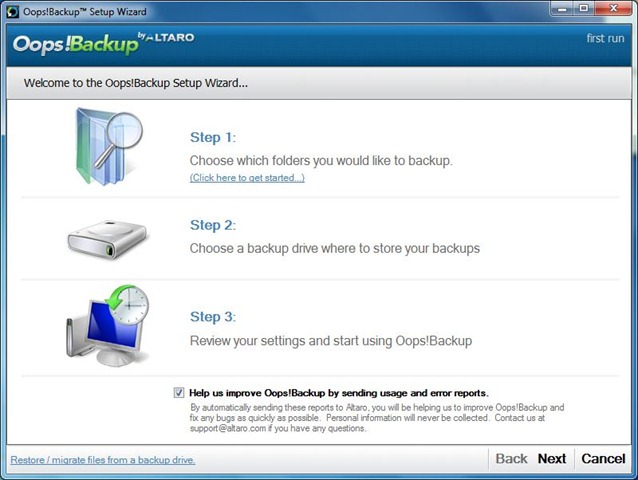
Setup once and get relaxed:
Truly amazing!!! We just need to setup once and then let all thing up to Oops Backup. It tracks the choose files and folders in background, while you are working (Silent File Versioning); as soon as it get new versions of files or changes in existing files and folders, it saves a copy of those changes automatically (BackInTime).
Backup Processing:
Oops Backup introduces ReverseDelta incremental technology that only backups the changes you made to a file without backing up the whole file again every time you make a change. It also ensures that the latest version of a file is always available in its entirety and not as a delta file.
Oops Backup integrates with Microsoft Volume Shadow (VSS) technology. This integration allows Oops!Backup to automatically back up files that are currently open and in use such as PST files.
A Kind of Mini Mode:
Oops Backup starts with Windows by default and runs in background to detect changes to selected files and folders. It verifies file versioning and fire backup task without interrupting you, when needed. It is recommended to backup data to external drives, if it so it detects the backup drive automatically, when they are connected or plugged. It gives the total freedom to users on move.
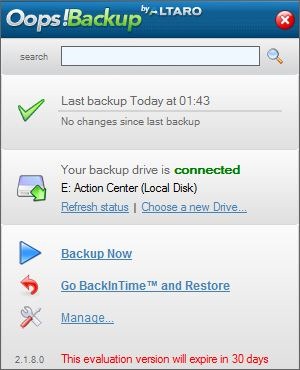
You can download and try fully-featured 30-day evaluation copy of Oops Backup: [DOWNLOAD]
Usually backup tasks are extensive and performed, when the system is idle, but its not possible every time. Oops backup has changed the way and now I have freedom to work without letting my PC idle.
| – | reviewed by |
| Ramesh Kumar, Microsoft MVP |


Leave a Reply