Sometimes Internet Explorer settings is messed, it could be performance issues, runtime errors and unexpected crashes. If it so, IE is required to reset and Microsoft has made it so easy as ABC since IE 7 release.
Just walk through the given steps to get it done.
How To:
1. Exit all instances of Internet Explorer (if it is running) and go to Control Panel > Network and Internet > Internet Options.
2. Click on Advanced tab and Internet Options dialog box appears.
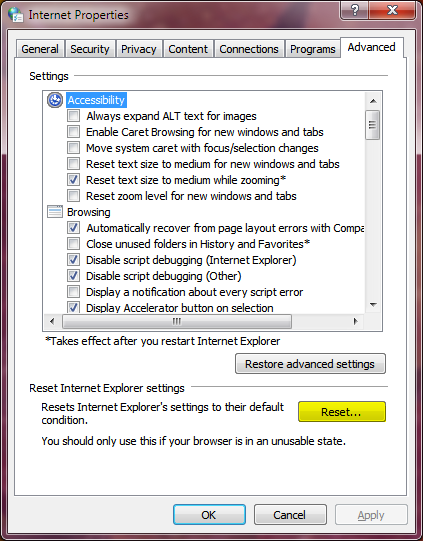
3. Under Reset Internet Explorer settings, click on Reset button. Then again click Reset.
4. When resetting process completes, click on Close in the Reset Internet Explorer Settings dialog box.
The method clears all add-ons and customizations, and reset IE as it is freshly installed on Windows. So you may need to re-enable add-ons according to your requirement.
5. Now start Internet Explorer. click on Tools menu and choose Manage Add-ons. A Manage Add-ons window appears. Now select appropriate Add-ons and Enable/Disable them.
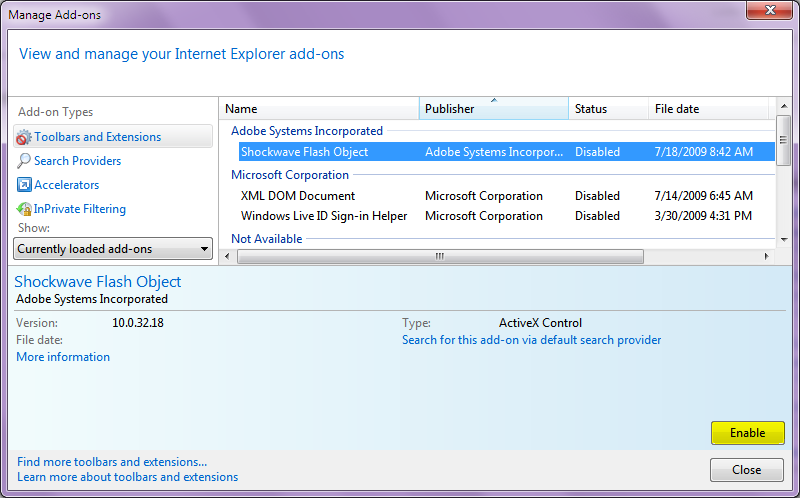
6. To commit changes, you need to restart IE once more… and that’s it.
Applies To:
- Windows Internet Explorer 9
- Windows Internet Explorer 8
- Windows Internet Explorer 7

Leave a Reply