Have you installed Windows 7? or purchased a PC with pre-loaded Windows 7? OEMs put lots of 3rd party applications to provide ease of access to all features. But it is not necessary that you use all of them.
Most of 3rd party Battery or Power Management applications add their context menu to Power Options notification icon. It distort the context menu UI and could be a chance that you might use such option.
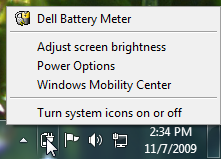 |
| Distorted Context menu, look like Windows 98 shell. |
In my case, I’m using a Dell Laptop, which is loaded with Battery Meter application to monitor battery status, life or health. Its context menu entry distort UI and its frustrating to me. So by the following guide, you can simple get rid of 3rd party entries from Context menu of Power Options without un-installation.
How To:
1. Run Registry Editor and navigate to following path:
HKEY_LOCAL_MACHINE\SOFTWARE\Microsoft\Windows\CurrentVersion\Applets\SysTray\BattMeter
2. Delete the key called ContextMenu. That’s it.
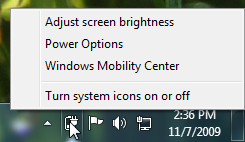 |
| Windows 7 default context menu of Power Options |
If you want to remove a particular entry, then explore the key ‘ContextMenu’ and check next sub keys which are named numerically.
Applies To:
- Windows 7
- Windows Vista
Leave a Reply