Windows 7 introduces a new aero feature called Aero Peek, that enables to display desktop by turning all open window into transparent window with a peek outer border.
However, there is now the Aero Peek button in right side of Taskbar aka Superbar. This alters the Show desktop shortcut in the Quick Launch in previous versions of Windows.
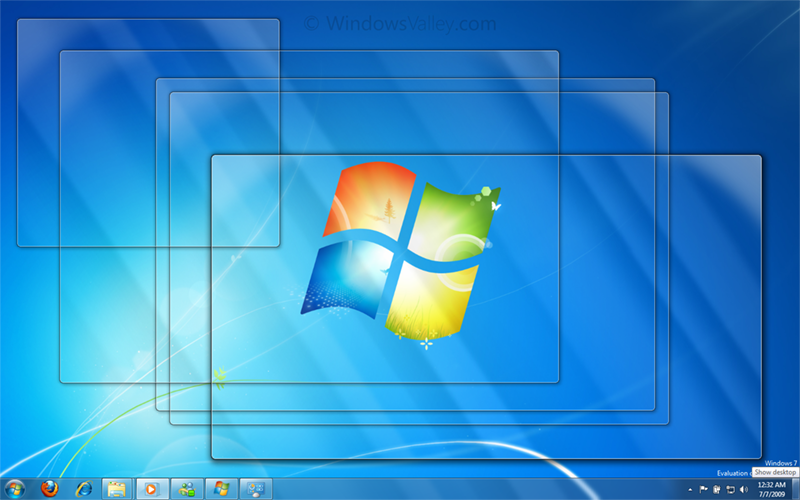
If the mouse hovers over it, all windows are transparent, as shown in the picture. If the button is clicked, all applications are minimized, and when clicked again, they are restored. here two ways for end-user and geeks as follows:
Method 1:
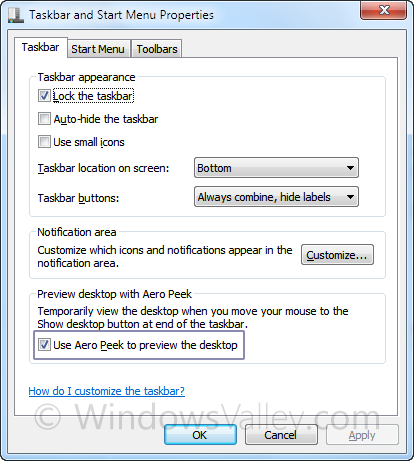
1. Right click on taskbar and choose Properties
2. On Taskbar tab, clear checkbox Use Aero Peek to preview the desktop and click on Apply or OK button to commit changes.
OR
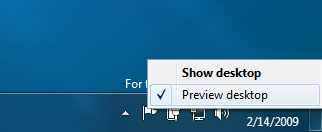
Right click on Aero Peek button and clear check sign from Preview Desktop option. Do its vice-versa to enable Aero Peek feature.
Method 2:
1. Run Registry Editor and navigate to: HKEY_CURRENT_USER\Software\Microsoft\Windows\CurrentVersion\Explorer\Advanced
2. Now change or modify a DWORD value called DisablePreviewDesktop and set its value to 0.
Applies To:
- Windows 7 Ultimate
- Windows 7 Enterprise
- Windows 7 Professional
- Windows 7 Home Premium
Leave a Reply