
You may have experienced problem with Windows 7 Desktop Gadgets like suddenly gadgets stopped displaying correctly, accidentally uninstall default built-in gadgets or you need to restore Gadgets to factory default settings.
So we are giving step by step solutions to get rid of these issues.
Fix: Gadgets stopped displaying/working correctly.
- To Fix it, Run Command Prompt as Administrator and then type these 3 commands one by one.
- After re-registering all these 3 Dlls, restart your PC to take effect.
regsvr32 msxml3.dll
regsvr32 scrrun.dll
regsvr32 jscript.dll
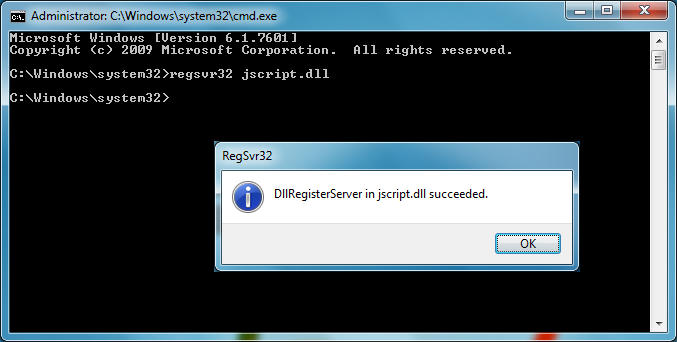
You will receive DllRegisterServer succeeded message for each Dll, which indicates the Dll is registered successfully.
Restore/Reinstall built-in Windows Gadgets.
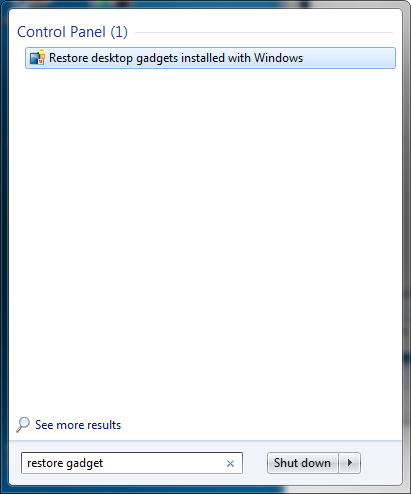
- Click on Start and type Restore Gadget in StartSearch box or type in Control Panel’s search box.
- Now click on Restore desktop gadgets installed with Windows and all default gadgets will be restored.
Restore/Reinstall Windows Gadget platform.
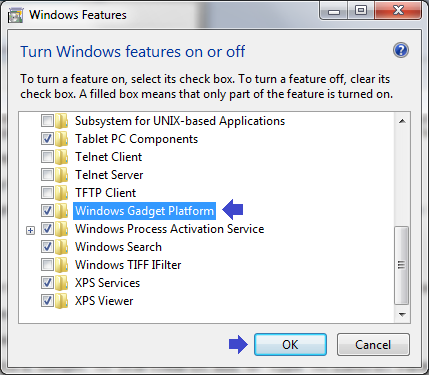
- To reinstall Windows Gadget Platform, go to Control Panel >> Programs >> Turn Windows features on or off
- In Windows Features, clear check box Windows Gadget Platform and click OK to start uninstallation.
- After uninstalling, restart your PC and follow the above steps again and mark check to Windows Gadget Platform and click OK to start re-installation.
Applies To:
- Windows 7 Ultimate
- Windows 7 Professional
- Windows 7 Home Premium
- Windows 7 Home Basic
– UPDATED 3/7/2011


Leave a Reply