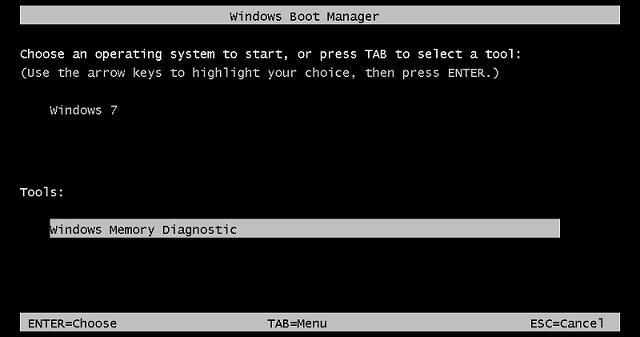
In Windows 7 and Vista, Windows Boot Manger offers a built in memory diagnostic tool to analyses the computer memory (RAM) for hardware memory problems and list the errors it finds.
You can launch the memory diagnostic tool by holding F8 on boot menu and then press TAB to select the tool and you can start scan your computer memory. If you are willing to Add/Remove it from Windows Boot Manger, then today, We are sharing two simple commands that help you to do so.
How To:
1. Run Command Prompt as Administrator (Elevated Command Prompt)
2. Execute the following commands to add/remove it from boot menu.
To add
bcdedit.exe /set {bootmgr} toolsdisplayorder {memdiag}
To remove
bcdedit.exe /deletevalue {bootmgr} toolsdisplayorder
3. Reboot your PC and hold F8 key to see the changes.
Applies To:
- Windows 7
- Windows Vista
- Windows Server 2008
- Windows Server 2008 R2


Leave a Reply